
Appearance
KAS F&B Nexus — Floor employee guide (mobile)
Tiếng Việt: Hướng dẫn nhân viên tầng (mobile)
This handbook is for restaurant floor and kitchen staff who use Nexus on a phone—the staff mobile app at /mobile. It walks through getting the app on your device, turning on alerts, and every screen you tap during a shift.
Managers and HR should use the manager & staff guide for desktop tools, roster setup, and scheduling (including the full HR click path under Adding employees).
Table of contents
- What Nexus does for you
- Getting access — HR setup, sign-in, and email
- Add Nexus to your home screen
- Turn on notifications
- Bottom bar — Home, Tasks, Manuals, Schedule
- Home — task preview and salinity shortcut
- Tasks — complete your checklist
- Manuals — read playbooks
- Schedule — see your shifts
- Time off — request leave
- My availability — when you can work
- Salinity checks — record broth readings
- Account menu (profile photo)
- Profile information
- English and Vietnamese
- If something feels wrong
1. What Nexus does for you
On your phone, Nexus helps you:
- See today’s tasks and mark them done (sometimes with photo or video proof)
- Read playbooks (manuals) for your branch and position
- Check your shift schedule
- Request time off and track approval status
- Set your availability so managers can build the schedule
- Record broth salinity checks on the scheduled interval (when enabled for your branch)
- Get push alerts when a new task lands, something is overdue, or a salinity reminder is due
Attendance not yet released: GPS clock-in and punch history are not available in the current mobile release. Time may be tracked outside Nexus until your company enables attendance.
You do not edit the roster, publish schedules, or approve other people’s requests on this app—that is manager work on the desktop Digital Manager workspace.
Before you can use any of the above, a manager or HR must create your employee card and (in most companies) send an email invitation. That flow is explained next.
2. Getting access — HR setup, sign-in, and email
Most companies run invite-only sign-in: you cannot create your own account on the login page. A manager adds you to the roster first, then you accept an email invite and set a password.
How HR and managers add you
This happens on the Digital Manager desktop workspace—not on the staff phone app. If you are a manager or HR reader, the same steps are under Adding employees in the manager guide.
What they do
- Sign in to Digital Manager on a computer.
- Open Settings (gear on the left) → Employees.
- Click Add.
- Fill in the New employee form:
- First name and Last name
- Branch (must match the store name used on the schedule)
- Nexus role — what you can access in the app (not your job title)
- Position — your job title (Server, Grill, etc.)
- Work email — where the invitation is sent
- Click Save. Nexus assigns an Employee ID automatically.
After save
- An invitation email is sent to the work email (when your company uses strict onboarding).
- The manager may see a success message; the accept link is sometimes copied to their clipboard so they can forward it if mail is slow.
- You open that email (or link), set a password, then sign in at the company
/loginpage. - On first sign-in, Nexus links your login to your roster row. You then see Home, Tasks, and the rest of the mobile app.
If something is wrong on the card (typo in branch, wrong email), only a manager can fix it: Settings → Employees → pencil icon on your row → Resend invitation if the email changed.
Your first sign-in
- Wait until HR confirms your employee card exists.
- Check your work email for an invitation from Clerk (your company’s auth provider). Subject/body vary; look for Accept invitation or a similar button.
- Set a password when prompted.
- Open your company Nexus URL (usually ending in
/login) on your phone. - Sign in with that same work email and password.
- You should land on staff mobile (
/mobile) with your name and the bottom bar.
If you see You are not on the roster yet, your card was not created, the email does not match, or the invite was not accepted—ask your manager to check Settings → Employees and resend.
Which email addresses work?
Gmail is not required. Any normal work inbox works—@yourcompany.com, Microsoft 365 / Outlook, Google Workspace, and other providers are fine. Use the address you will actually read for work.
| Situation | What to know |
|---|---|
Company email (name@hexagon.com, etc.) | Preferred for production. This is what HR should put in Work email. |
| Personal Gmail / Outlook | Works technically if HR enters it as your work email—useful for testing or if you have no company mailbox yet. |
| Invitation never arrives | Check spam / junk / quarantine. Corporate filters sometimes block auth emails. Ask your manager to click Resend invitation on your row—the fresh link may also copy to their clipboard to paste in chat. |
| Staging / test environments | Invites may come from a Clerk development sender (e.g. @accounts.dev). IT may need to allowlist that sender. |
| Wrong address on file | Manager edits your Work email, saves, then Resend invitation. |
Sign-in must use the email that matches your roster invitation (or the address HR used when they created you). If in doubt, ask HR which address they entered.
Open Nexus on your phone
Nexus is a website that works like an app—there is no separate download from the App Store or Google Play.
- Use the company link HR gave you, usually ending in
/login(for examplehttps://dev-nexus.kasholdingsfb.com/login). - Open it in a browser:
- Android: Chrome (recommended)
- iPhone: Safari (required for home-screen install and notifications)
- Sign in with your work email and password.
- You land on staff mobile (
/mobile): bottom bar and your name at the top.
Tip: For every shift, open Nexus from your home-screen icon (section 3), not a buried browser tab. It is faster and unlocks reliable notifications on iPhone.
3. Add Nexus to your home screen
Do this once on the phone you carry at work. Install prompts appear only on the sign-in page (/login and Clerk subpaths such as /login/factor-one)—not after you enter the app.
On the login screen, Nexus may offer a shortcut to install:
- Android (Chrome): a floating Install Our App button at the bottom of the screen. If no button appears after a few seconds, a fallback banner shows Chrome menu steps (
…→ Install app). - iPhone (Safari): a short guide at the bottom: Tap the Share button below and select “Add to Home Screen”. You can dismiss it with × and install manually later. Dismissal is remembered on that browser.
If you already open Nexus from a home-screen icon, these prompts stay hidden—that is normal.
Android (Chrome)
Open the company login link in Chrome (you do not need to sign in first).
On the login page, if Install Our App appears at the bottom, tap it and confirm when Chrome asks.
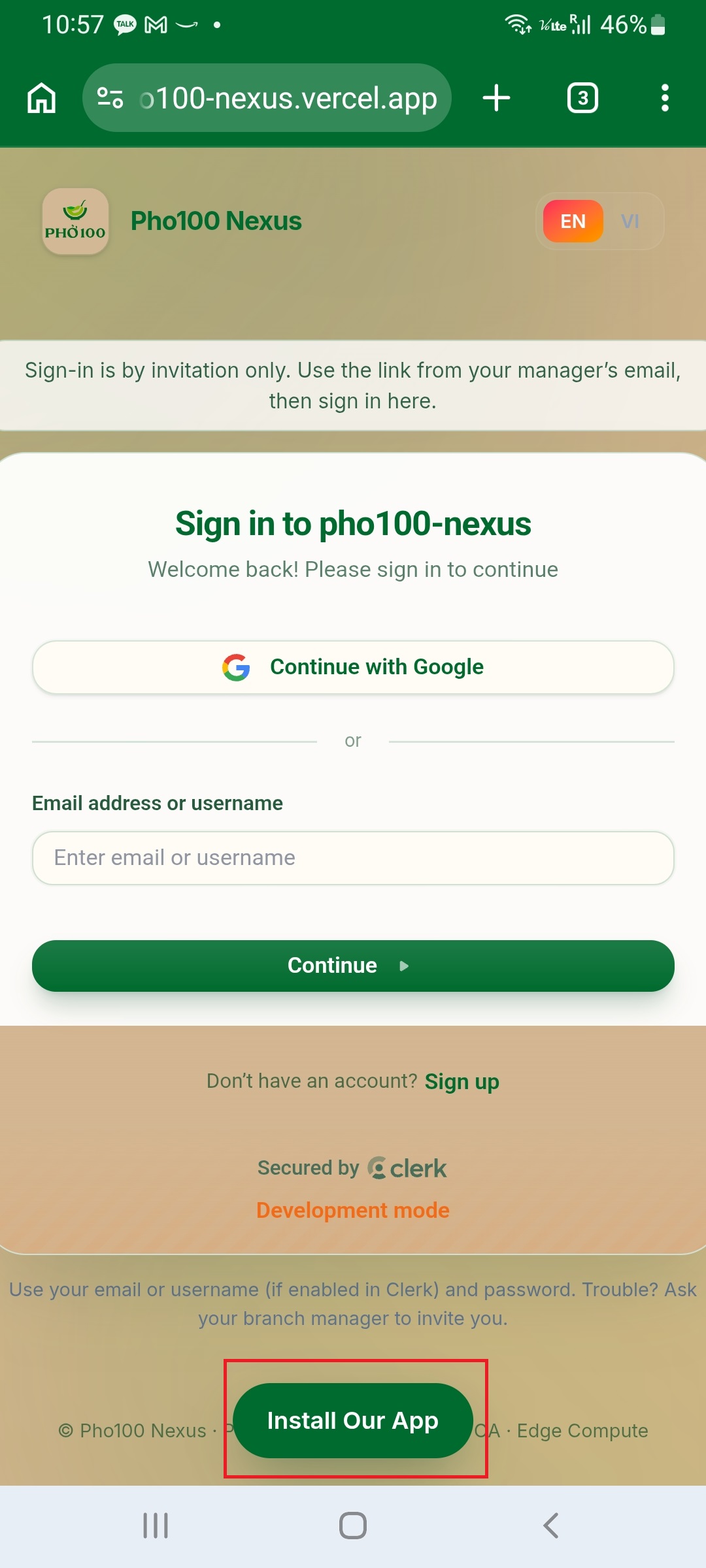
If no button appears after a few seconds, read the fallback banner at the bottom, or tap … (top right) → Install app or Add to Home screen → confirm.
A KAS F&B icon appears on your home screen. Always open Nexus from that icon during work.
iPhone (Safari)
- Open the company login link in Safari—other browsers on iPhone cannot add the app properly.
- On the login page, follow the bottom install guide if you see it, or use the manual path below.
- Manual path: tap Share (square with arrow at the bottom) → scroll → Add to Home Screen → Add.
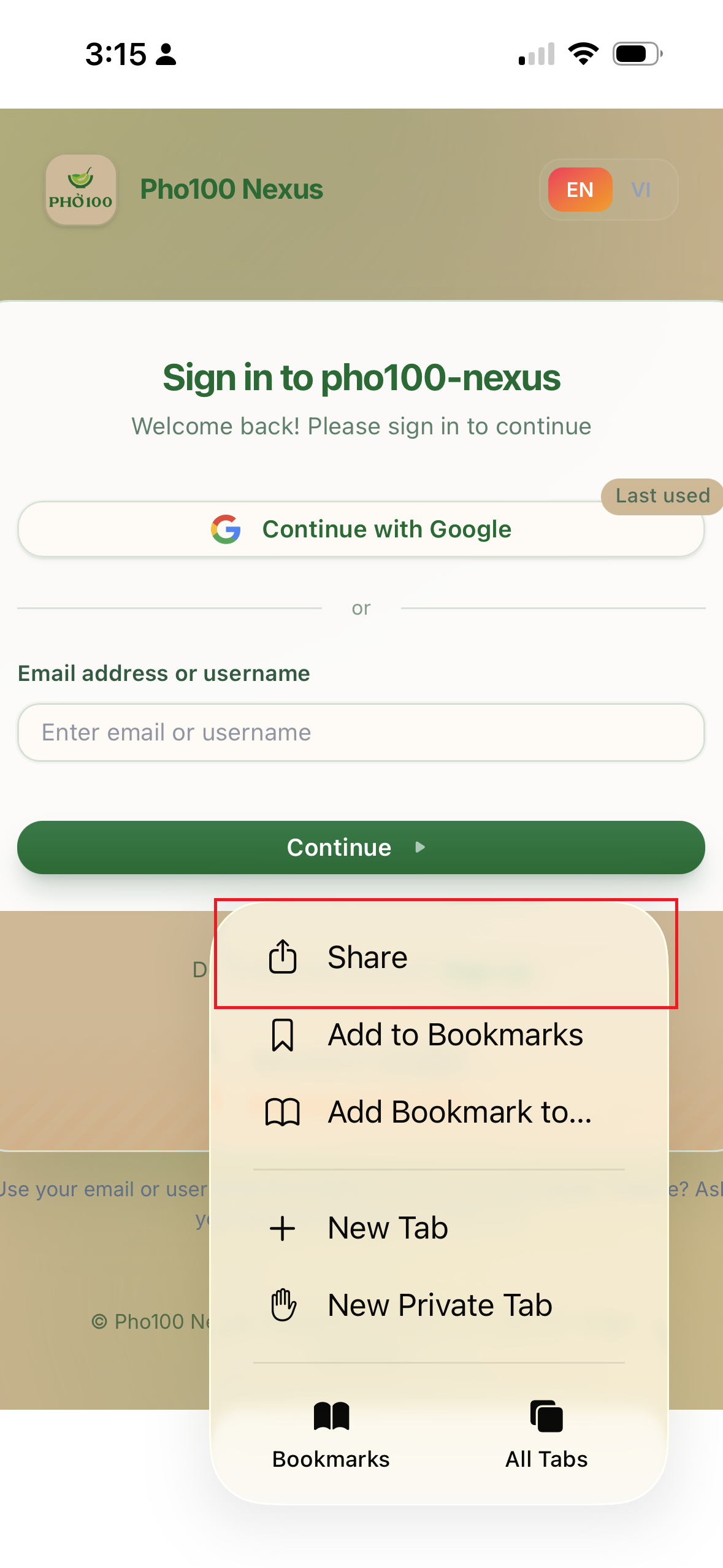
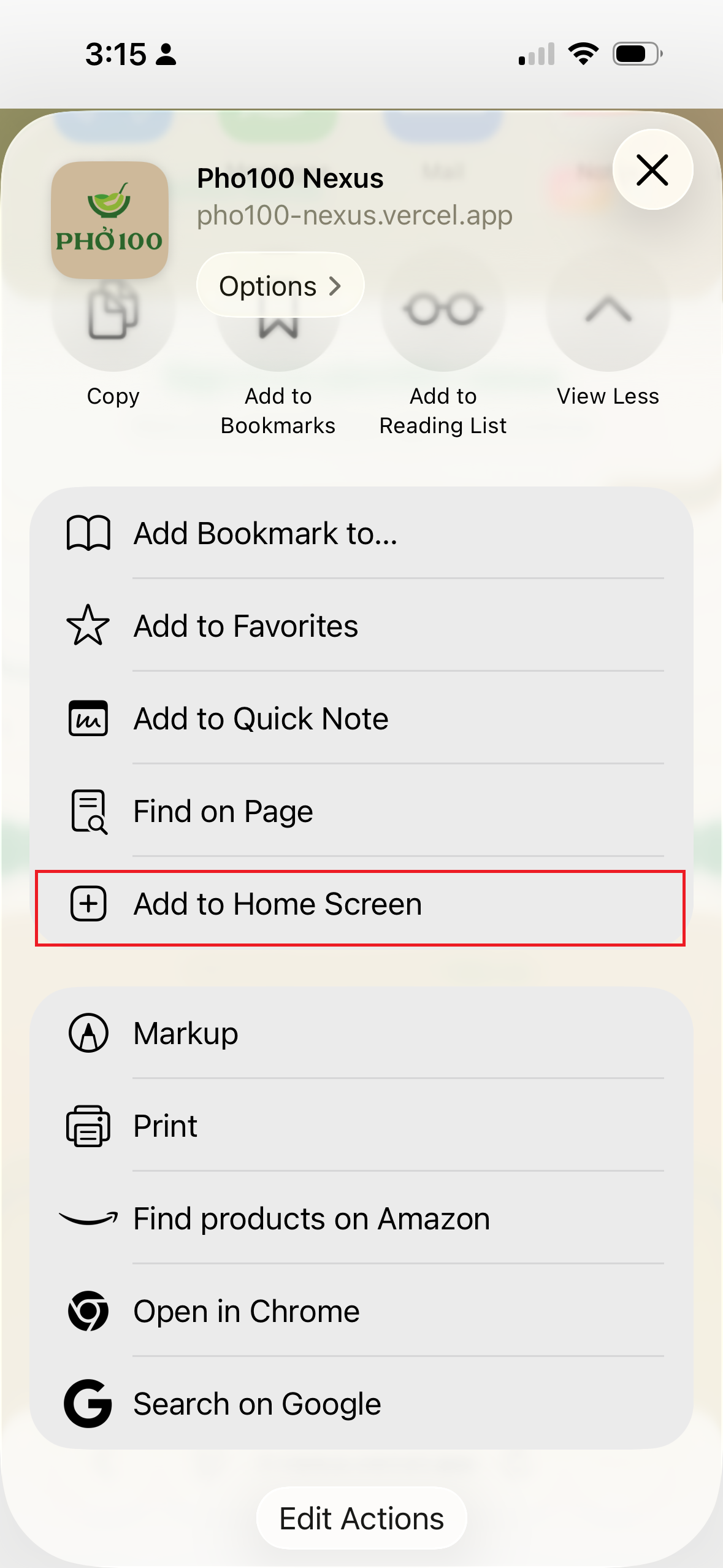
- Launch Nexus from the new icon. It opens full screen, without Safari’s address bar.
If you dismissed the login-page guide, you can still install anytime from Safari using step 3.
4. Turn on notifications
Push alerts tell you about new tasks, overdue tasks, and sometimes salinity reminders. You must enable them on each phone you use.
Steps
Open Nexus from your home-screen icon (especially important on iPhone).
On Home, tap your profile photo (top right).
Under Notifications, tap Enable notifications.
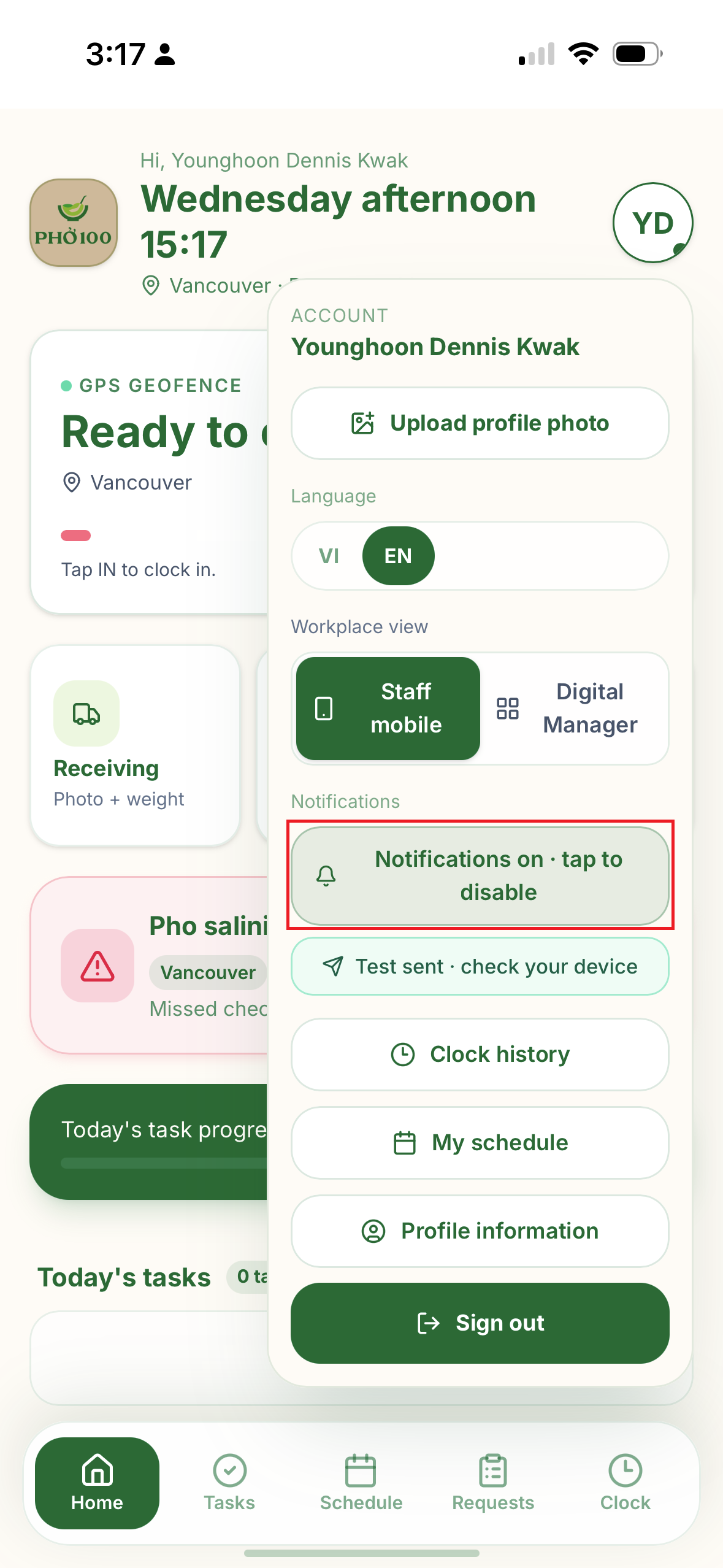
When your phone or browser asks, tap Allow.
Optional: tap Send test to confirm an alert reaches you.
iPhone
- Add Nexus to your home screen from Safari first (iOS 16.4 or later).
- Enable notifications from the home-screen icon, not from a normal Safari tab.
- Until you install to the home screen, the button may say Add to Home Screen first.
If notifications do not work
| What you see | What to do |
|---|---|
| Add to Home Screen first | Complete section 3, then try again from the home-screen icon. |
| Notifications blocked | Open phone Settings → find Safari, Chrome, or KAS F&B → turn notifications on → retry in Nexus. |
| Notifications unsupported | Use Chrome on Android or Safari 16.4+ with home-screen install on iPhone. |
You can tap Notifications on · tap to disable later if you need to turn alerts off on that device.
5. Bottom bar — Home, Tasks, Manuals, Schedule
The bottom bar stays visible on every tab so you never get lost.
| Icon / label | Tab | What it is for |
|---|---|---|
| Home | Home | Greeting, today’s task progress, salinity shortcut |
| Tasks | Tasks | Full checklist for any day—start tasks, attach evidence, mark done |
| Manuals | Manuals | Browse read-only playbooks (when your role includes manuals) |
| Schedule | Schedule | Your personal shift list (embedded view) |
Tap any icon to switch screens. The active tab is highlighted with a green pill.
If you do not see Manuals in the bottom bar, ask your manager—your Nexus role may not include playbook read access.
Time off and My availability are in the account menu (profile photo), not the bottom bar.
6. Home — task preview and salinity shortcut
Home is what you open at the start of a shift. Scroll to see everything.
Greeting header
- PHỞ 100 logo, Hi, [your name] (or Vietnamese greeting)
- Weekday, time of day, and current time (updates every minute)
- Branch · position line so you can confirm HR has the right store and job title on file
- Profile photo (top right) opens your account menu
Salinity check shortcut
If your store runs broth salinity checks, a Salinity check tile appears on Home—only when your manager has enabled salinity for your branch and assigned at least one pho type. Tap it to jump straight to today’s checks. Full steps are in section 12.
If you do not see the tile, ask your kitchen lead whether salinity is enabled and pho types are assigned for your branch.
Today’s task progress
A green card shows X / Y complete and a progress bar. Tap it to jump to the Tasks tab.
Today’s tasks list
A read-only preview of assignments for today (same calendar day as the whole brand’s schedule). Each row shows:
- Task wording and which manual / branch it came from
- Deadline time
- Priority badge if it is still new (Sent)
- Strikethrough if already Done
Tap View all to open Tasks and actually start or finish work. You cannot complete tasks from Home—you only preview them there.
7. Tasks — complete your checklist
The Tasks tab is where work gets done.
Pick a day
Use the date picker at the top to view today or another day. By default you see today in the brand’s schedule timezone (Asia/Ho_Chi_Minh — Hanoi, UTC+7).
Search and filters
- Search by task wording, manual name, or branch.
- Filter chips: All, Sent, Doing, Done.
Task states
| State | Meaning |
|---|---|
| Sent | New—shows a Priority badge; tap Start when you begin |
| Doing | In progress (green-tinted card) |
| Done | Finished—strikethrough; shows when you completed it |
Completing a task
- No photo required: tap Mark Done when finished.
- Photo or video required:
- Tap Start (if still new).
- Take photo or Record video with the camera, or From gallery for existing files.
- Preview attachments; remove mistakes before submitting.
- Wait for upload (you may see compressing / uploading progress).
- Tap Submit & mark Done.
If evidence is required but missing, Nexus shows a hint and will not let you finish early.
Reference photos
Some tasks include reference images from your manager (how plating should look, etc.). Scroll the card to view them before you shoot your own proof.
Empty list?
- No assignments today — nothing was sent to you for that date; confirm with your manager if you expected chores.
- Tasks tied to yesterday disappear when the calendar day rolls over—that is normal, not a bug.
8. Manuals — read playbooks
The Manuals tab lets you read the playbooks your manager maintains—opening/closing checklists, prep guides, and similar SOPs. You cannot edit templates here; when managers assign work from a playbook, it shows up on Tasks.
Browse the list
- Tap Manuals in the bottom bar.
- Scroll or search by manual name, branch, or position.
- Each row shows the manual title and which branches / positions it applies to.
Open a manual
Tap a manual to open a detail sheet:
- Description and scope (branch, position)
- Reference photos or videos at the manual level
- Numbered task steps—each step may show a deadline time and badges for required photo or video evidence
- Reference images on individual steps when your manager attached examples
Use this screen to learn the procedure before or during your shift. Completing assigned work still happens on the Tasks tab.
Empty list?
Your manager may not have published playbooks for your branch or position yet—or your role may not include manual read access. Ask your shift lead.
9. Schedule — see your shifts
The Schedule tab shows your shifts only—not the whole team calendar managers edit on desktop.
What you see
- Shifts grouped by date; Today is highlighted
- Start–end time, branch name, and sometimes internal tags (for example split payroll notes)
- Range: roughly three weeks back and eight weeks forward
Empty schedule?
Usually means:
- Your manager has not published your row yet, or
- Your branch on file does not match the calendar they edit
Ask your supervisor to check your employee card under Settings → Employees.
Full-page schedule
From the account menu, My schedule opens the same content on a full screen with a Back button. Use whichever view you prefer—the data is the same.
10. Time off — request leave
Use Time off when you need to request days away from work.
Open Time off
- On Home, tap your profile photo (top right).
- Tap Time off in the account menu.
Submit a request
- Pick a start date and end date for the time you need off.
- Optionally add a reason.
- Tap Submit time-off request.
The form clears after submit. Your manager reviews and approves or rejects on the desktop workspace—you cannot approve your own request on mobile.
Track your requests
Below the form, your recent time-off requests appear with status:
| Status | Meaning |
|---|---|
| Pending | Waiting for manager approval |
| Approved | Your manager accepted the dates |
| Rejected | Declined—follow up with your manager if you need to discuss |
If a request stays pending for a long time, talk to your manager in person.
11. My availability — when you can work
My availability tells managers when you are free to work. They use this when building the schedule.
Open My availability
- On Home, tap your profile photo (top right).
- Tap My availability in the account menu.
The week grid
You see a 14-day grid ahead of today. Tap a day to mark or adjust your availability.
| Employment type | How it works |
|---|---|
| Full-time | You are available by default. Mark a day off or adjust your hours when something changes. |
| Part-time | Mark days you can work and set start/end hours. Unmarked days are not scheduled. |
Set hours for a day
- Tap the day you want to edit.
- Set From and To times (end must be after start).
- Tap Save hours.
Days with approved time off cannot be edited here—use Time off for leave requests instead.
12. Salinity checks — record broth readings
When your branch runs broth salinity QA, use the Salinity check tile on Home or follow your kitchen lead’s rotation schedule.
When the tile appears
The tile shows only when your manager has enabled salinity for your branch and assigned at least one pho type. If it is missing, ask your kitchen lead.
Today’s schedule
Tap the tile to open today’s schedule, grouped by broth type.
Filter chips: All, Upcoming, Uploaded, Missed
| Filter | Shows |
|---|---|
| Upcoming | Slots still due today |
| Uploaded | Checks you already recorded |
| Missed | Past slots with no check |
Record a check
- Tap Record check on a due slot—or open the form and pick the broth type when several are active.
- Enter the reading from the meter.
- Attach a photo of the meter (Nexus may suggest the reading from the photo).
- Submit.
Missed slots may alert managers on the notify list—complete checks on time when you are on the broth rotation.
13. Account menu (profile photo)
Tap your profile photo on Home (top right).
| Menu item | What it does |
|---|---|
| Time off | Request leave; track pending and approved requests |
| My availability | Mark days and hours you can work |
| Profile information | Read-only HR card (/profile) |
| Upload profile photo | Pick a photo, crop, save—managers see your face on the roster |
| Language | Switch VI / EN |
| Notifications | Enable or disable push on this phone; Send test |
| My schedule | Opens full-page schedule (/my-schedule) |
| Sign out | Logs you out; returns to login |
Managers who also use desktop may see Workplace view here (Staff mobile vs Digital Manager). Floor staff normally ignore that toggle.
The account menu is only on Home, not on other tabs. Switch back to Home if you need language, notifications, time off, or availability.
Maintenance and purchase tickets are handled on the manager desktop—not part of this floor-staff guide.
14. Profile information
Open Profile information from the account menu. Everything here is read-only—to fix a wrong branch, phone, or job title, tell your manager.
| Field | Meaning |
|---|---|
| First name / Last name | Name parts HR entered on your roster card |
| Full name | Combined display name |
| Employee ID | Internal id (assigned when HR created your card) |
| Position | Your job title (Server, Grill, etc.) |
| Nexus role | Platform permissions—not the same as position |
| Branch | Store you belong to |
| Department | Optional grouping |
| Phone / email | Contact on file |
| Start date | Hire or wage start date when recorded |
If you work for more than one brand, a brand panel lets you see which workspace is active. Most floor staff only see one brand.
Footer reminder: To correct details on file, please ask your manager.
15. English and Vietnamese
Nexus supports English and Vietnamese on mobile.
- Tap your profile photo on Home.
- Under Language, tap EN or VI.
Your choice is saved on that phone. Labels, greetings, and time formatting update immediately.
16. If something feels wrong
| What you notice | What to try |
|---|---|
| Cannot sign in / “not on roster” | Manager must add you under Settings → Employees and Resend invitation—see section 2. |
| Invitation email missing | Check spam; any work email provider is OK (not Gmail-only). Ask manager to resend or paste the accept link. |
| Schedule empty | Ask manager to publish your shifts and confirm your branch on file. |
| Tasks missing | Wrong day selected? Nothing assigned yet? Tasks from yesterday roll off at day change. |
| Manuals tab missing | Ask manager—your Nexus role may need playbook read access. |
| Time off stuck pending | Manager approves on desktop—follow up in person if urgent. |
| Availability not saving | Enter a valid time window (end must be after start), then tap Save hours. |
| Clock-in not shown | Expected — GPS attendance is not released yet. Time may be tracked outside Nexus. |
| Notifications silent | Home-screen install (iPhone), Allow permission, then Enable notifications in profile menu. |
| Wrong name, branch, or phone on profile | Tell manager—only they can edit Settings → Employees. |
| Salinity tile missing | Manager must enable salinity and assign pho types for your branch. Ask kitchen lead. |
Who to ask
| Topic | Ask |
|---|---|
| Invitation, email, password | HR |
| Wrong roster details | Manager → Settings → Employees |
| Shift not on calendar | Manager |
| Task you do not understand | Shift lead or manager—or check Manuals |
| Time off or availability | Manager |
| Salinity setup or missed checks | Kitchen lead or manager |
Related docs: Manager & staff guide (HR: Adding employees)